To turn on BetSlip Live updates on Android, allow the app’s notifications in your phone settings. Open Settings → Notifications → App notifications, choose BetSlip Live, and turn notifications on. Then check whether Android is allowed to show them on your lock screen. Menu names vary by phone. Google’s Android guide to notification settings covers the common paths.
BetSlip Live can show available progress for supported slips you already placed with another sportsbook. Its public feature page lists Android notifications among the ways to see available updates. If you have not saved the slip yet, the screenshot import guide explains how to import and review a supported receipt.
1. Save and check the supported slip
Open the ticket you already placed, then compare every saved leg with the original receipt: the player or team, market, line, and time period. A first-half selection and a full-game selection are different instructions. Fix a mismatch before you rely on the tracker. Available stats and import support vary by event, market, and source.
2. Allow BetSlip Live notifications
- Open your phone’s Settings app.
- Tap Notifications, then App notifications. On some phones, open Apps, choose BetSlip Live, and tap Notifications.
- Find BetSlip Live. If it is not in the recent list, use the option to show all apps.
- Turn on Allow notifications. If Android shows notification categories for the app, review the categories it lists.
Android 13 and later require permission before a newly installed app can send ordinary notifications. If you declined the prompt, you can turn the permission back on from the app’s notification page in Settings. Android’s notification-permission guide explains the change.
3. Choose what appears on the lock screen
An app’s notifications can be allowed while the phone hides them when locked. In Settings, open Notifications → Notifications on lock screen and choose whether to show them. The label and options vary by device. If someone else might see your phone, keep sensitive details hidden and check the full notification after unlocking. Android Help explains the lock-screen controls.
4. Check for quiet or dismissed updates
Swipe down from the top of the screen first. A notification may be in the shade even if it did not make a sound. Some Android phones let you set an app’s notices to Alerting or Silent; silent notices can appear without a sound or vibration. If your phone offers notification history, check there for a recently dismissed notice. Google’s notification guide describes these options, which vary by phone.
If no relevant update appears, open the saved slip and check that the event and market are supported. Live progress depends on available coverage and data. Use the original sportsbook ticket to confirm the market wording and final grade; a tracker notification is not a settlement confirmation.
Keep notification details private
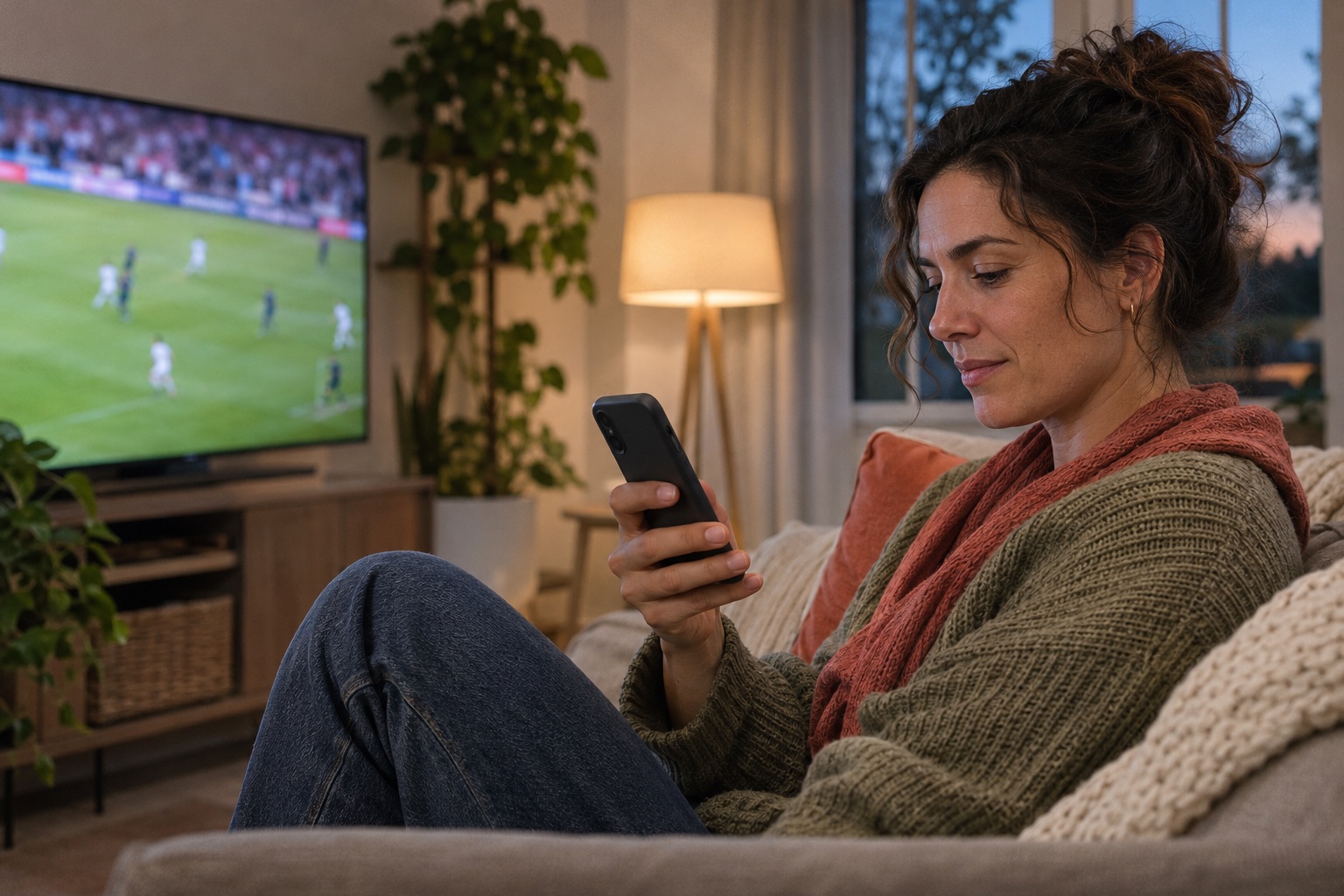
Android lets you hide sensitive notification content on the lock screen. You can keep that privacy setting on and still check the notice after unlocking. This is useful if your phone is visible to other people during a game.
BetSlip Live tracks supported bets placed elsewhere; it does not accept wagers or settle them. See the supported tracking features or get the app.